Today's quick tip is coming straight from the Lightroom Mastery guide. It's on sale now for DPT readers. Don't wait, download it today.
Lightroom Classic is full of semi-hidden gems. If you’re a constant tinkerer like me, you’ll love the "Snapshot" feature.
Let’s say you are working on a photo and it’s become a bit of a struggle.
You like one edit and want to save the settings before you move on to other options.
To save your edits just as they are at that moment in time, click the + sign in the Snapshot panel or simply use the keyboard sh
ortcut Ctrl+N (CMD+N on a Mac) to store all your settings.
Then you’re free to move on to that proverbial “one more brush stroke” that might make or break the image with the assurance that you can go back to the best edit.
But what about the History panel?
If the "Snapshot" feature had an older cousin, it would be the "History" section of the folders panel.
As you likely already know, everything you do in Lightroom is considered to be “non-destructive” editing.
This means that you are not actually manipulating the original file of your image but rather a virtual copy.
The vital thing to note here is that you can always travel backward or forward in time with your edits using the History.
Tired of spending hours on end fiddling around in Lightroom Classic and not getting the results you know you should be getting?
 Today's quick tip is coming straight from the Lightroom Mastery guide. It's on sale now for DPT readers. Don't wait, download it today.
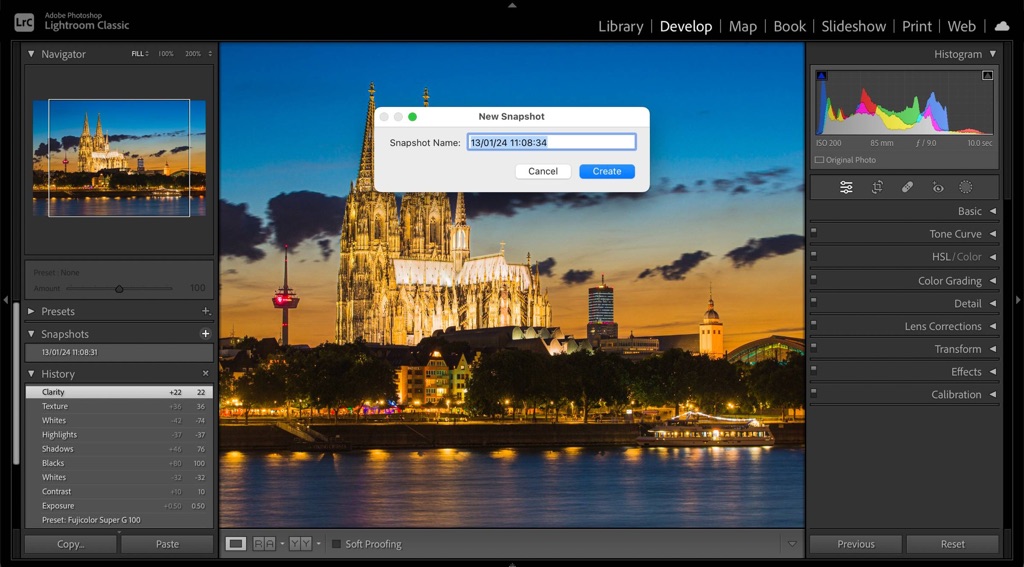 Lightroom Classic is full of semi-hidden gems. If you’re a constant tinkerer like me, you’ll love the "Snapshot" feature.
Let’s say you are working on a photo and it’s become a bit of a struggle.
You like one edit and want to save the settings before you move on to other options.
To save your edits just as they are at that moment in time, click the + sign in the Snapshot panel or simply use the keyboard sh
ortcut Ctrl+N (CMD+N on a Mac) to store all your settings.
Then you’re free to move on to that proverbial “one more brush stroke” that might make or break the image with the assurance that you can go back to the best edit.
But what about the History panel?
If the "Snapshot" feature had an older cousin, it would be the "History" section of the folders panel.
As you likely already know, everything you do in Lightroom is considered to be “non-destructive” editing.
This means that you are not actually manipulating the original file of your image but rather a virtual copy.
The vital thing to note here is that you can always travel backward or forward in time with your edits using the History.
Tired of spending hours on end fiddling around in Lightroom Classic and not getting the results you know you should be getting?

